
Suspicious file analysis with DeepCore
Use DeepCore to scan a suspicious file or endpoint scope, review evidence-rich results, and move from detection to an informed response decision.
The challenge
When a suspicious file is reported, analysts need more than a filename or a single alert. They need to identify the affected endpoint, define a controlled scan scope, understand what DeepCore found, and preserve enough context to decide whether to investigate further, contain the host, or take action on the file.
The Defensium approach
Defensium uses the DeepCore Engine for deep static analysis of suspicious files and selected endpoint areas. The workflow keeps scope, resource controls and evidence review in one investigation path.
1. Select the target endpoints
Open New Scan, select the online endpoints that should be examined, and confirm that the endpoint names and operating-system context are correct. For a multi-endpoint investigation, provide a clear scan name that will remain meaningful in reports and handoffs.
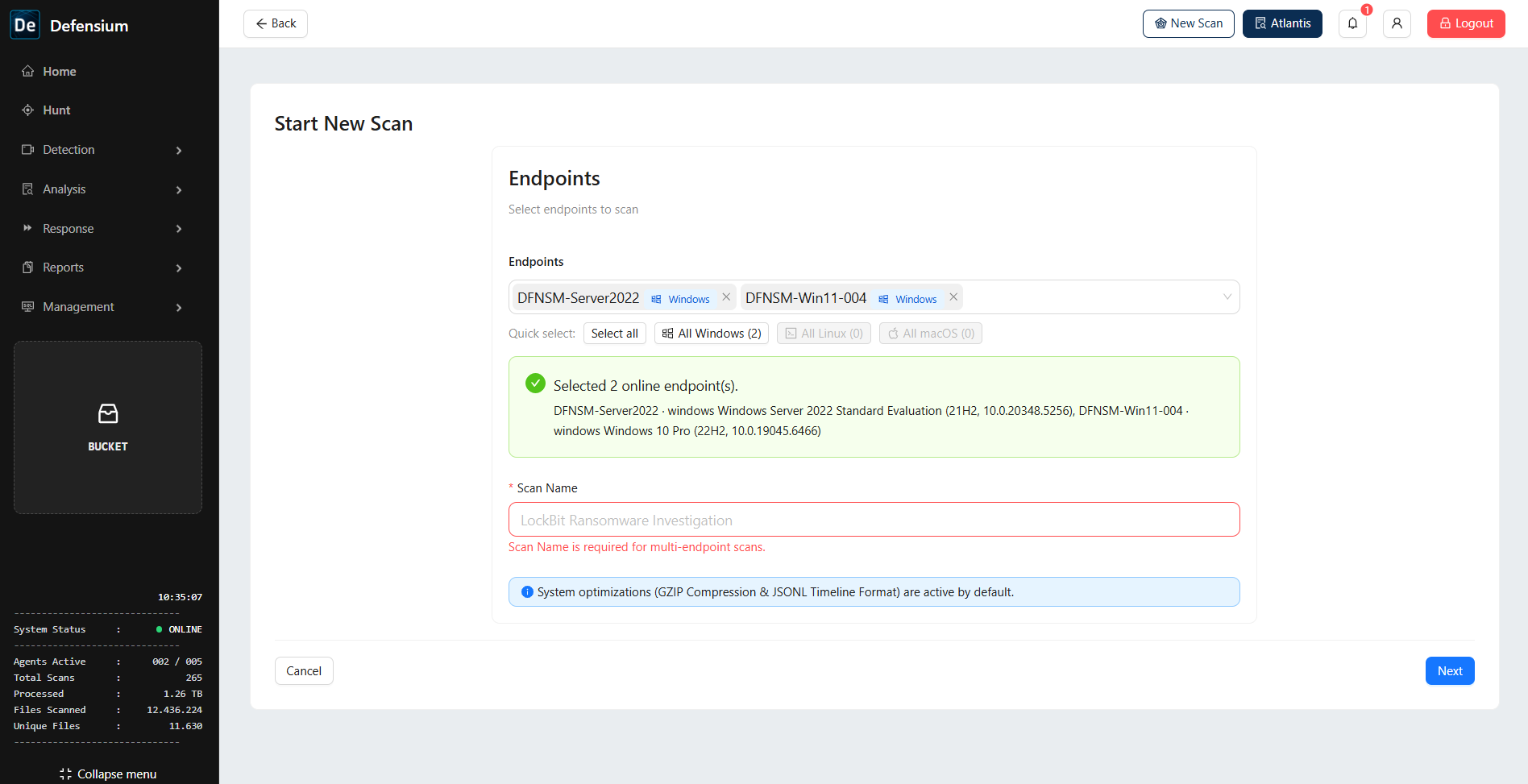
The endpoint selection screen also confirms how many online endpoints are selected before the scan is configured. If the endpoint is not online, resolve its management or network state before relying on a scan result.
2. Choose DeepCore and define the scope
Select DeepCore Engine and configure the target mode. A directory-focused scan can be aimed at representative paths such as user, Windows or temporary areas; the exact scope should match the investigation question and change-control requirements.
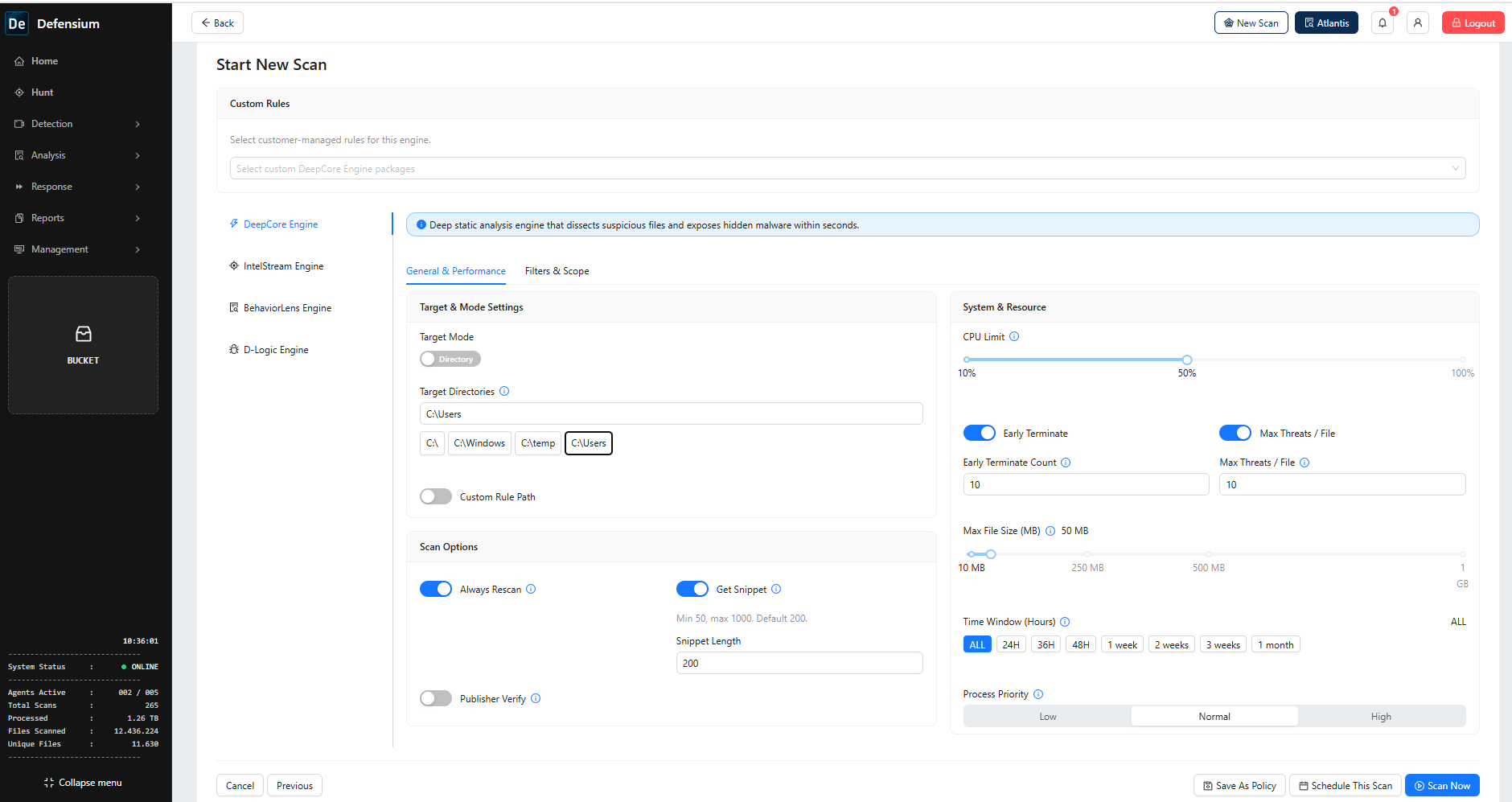
The screen exposes controls that help analysts keep an investigation targeted:
- Target directories and optional custom rule path.
- CPU limit and process priority.
- Early termination and maximum threats per file.
- Maximum file size.
- Optional rescan, snippet extraction and publisher verification.
- A time window for the evidence under review.
These settings are controls for the selected run, not universal performance guarantees. Use a narrower scope and lower resource settings when the endpoint is business-critical; use a broader scope only when the investigation requires it.
3. Start the scan
Review the selected endpoints, scan name, DeepCore package and resource settings. Start the scan from the wizard and retain the scan identifier in the investigation record.
The interface supports system optimisations such as compressed result transfer and a timeline-oriented result format. These help analysts handle large result sets without changing the evidence scope.
4. Review the scan output
When the scan completes, start with the overview: status, files scanned, total processed, total findings, unique rules, unique threat files and scan duration. Then review the resource graphs and summary narrative before opening individual findings.
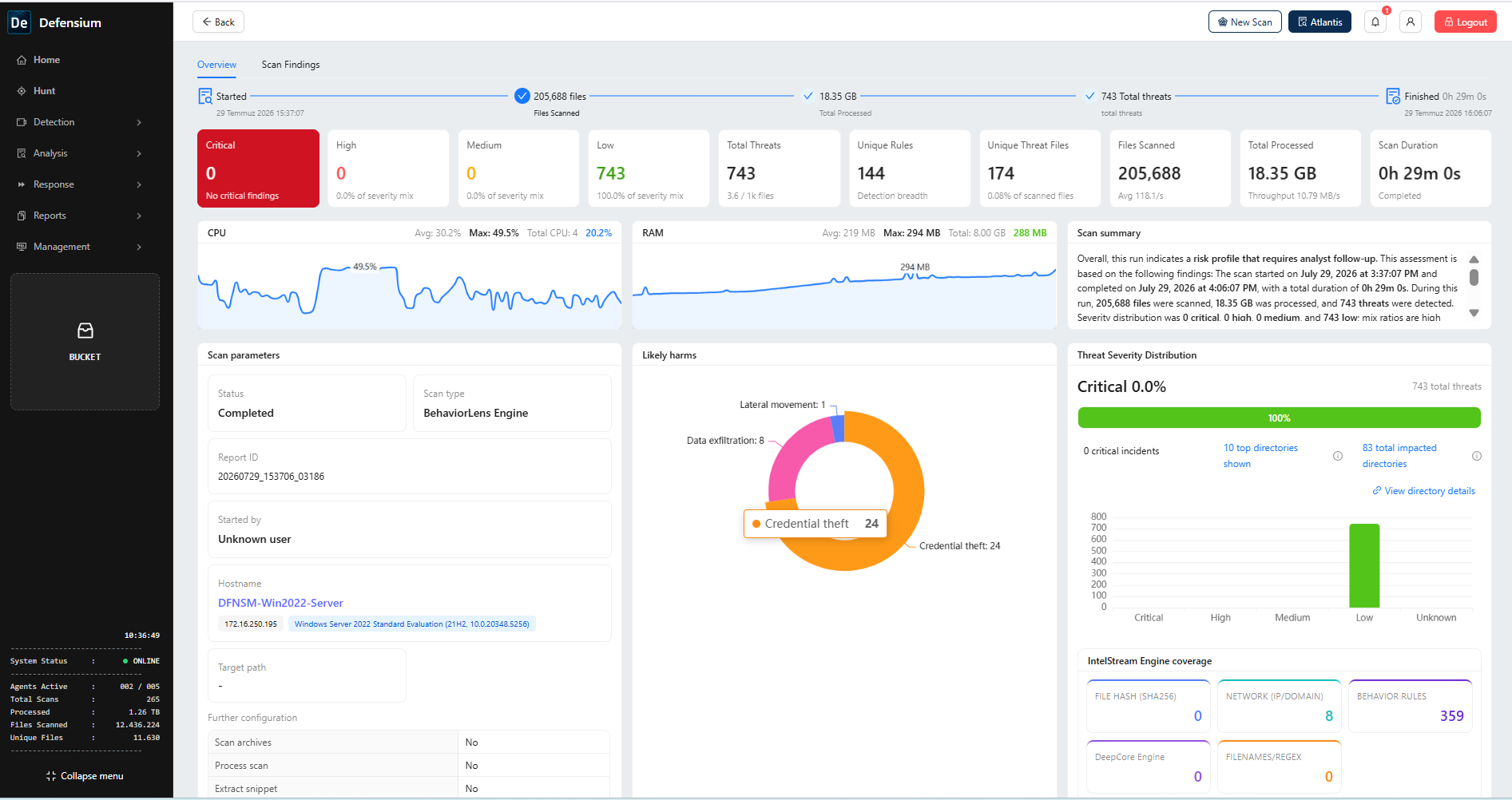
The example screen shows the kind of output available for analyst review, including scan parameters, CPU and RAM graphs, severity distribution, likely-harm categories and engine coverage. The values shown are an example run from the captured interface, not a product-wide performance commitment.
5. Investigate the suspicious file
Open a finding to review the file context, endpoint, file properties, hash and evidence that triggered the detection. Where available, inspect the activity stream, rule mapping and MITRE ATT&CK context to understand why the file requires attention.
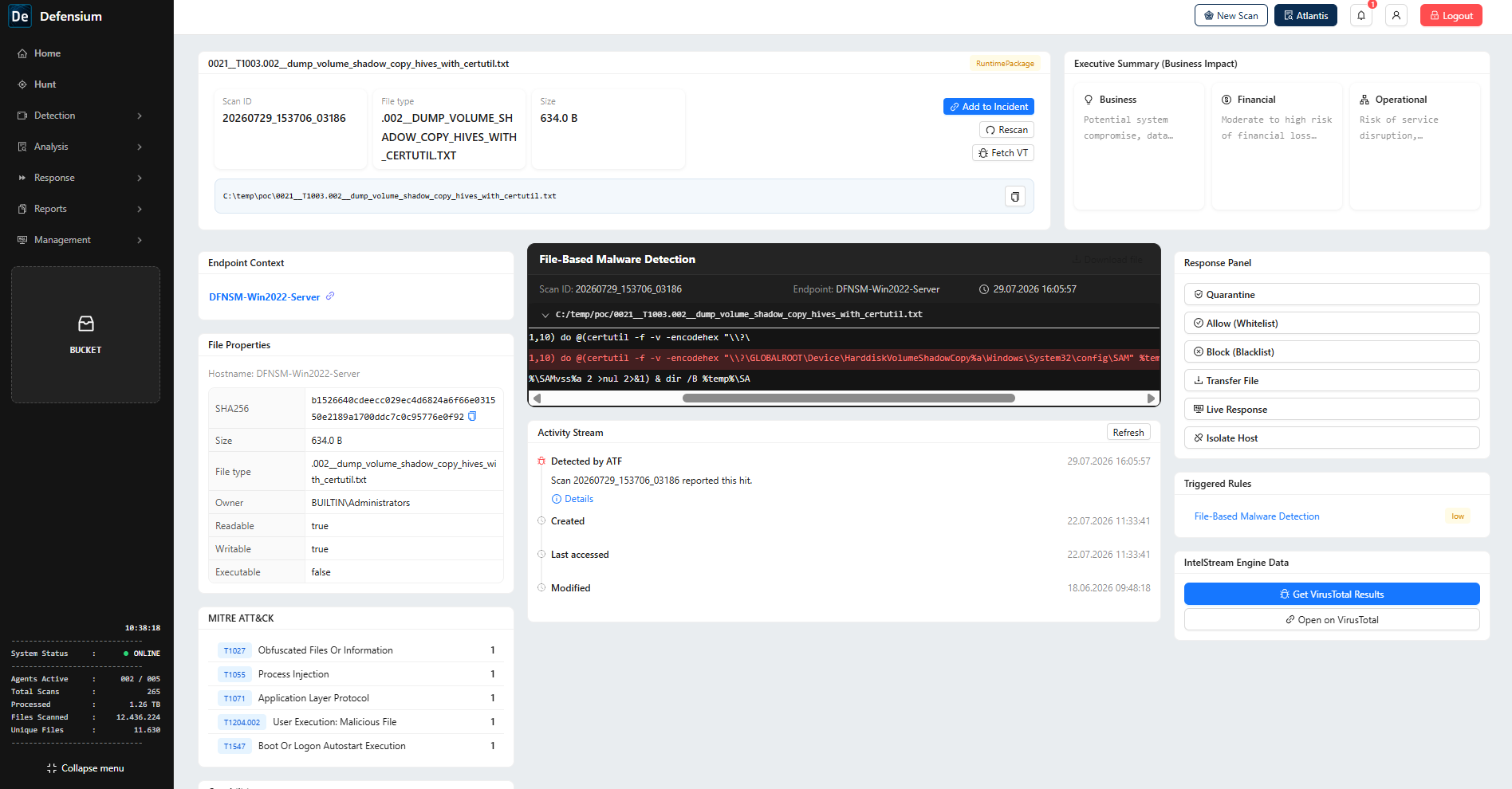
The analysis view can provide a practical handoff point: analysts can preserve the finding, add it to an incident, request additional intelligence, or use the response panel according to their authorisation and containment procedure.
Operational result
This workflow gives the SOC a repeatable way to move from a suspicious-file report to a scoped DeepCore scan and an evidence-backed decision. It helps separate three questions that are often mixed together:
- Where should we look? Select endpoints and paths that match the investigation.
- What did the engine observe? Review the scan overview, file properties, triggered rules and evidence context.
- What should happen next? Escalate, preserve, contain or remediate according to the organisation’s response policy.
No outcome should be inferred from a single severity label. Analysts should validate the file context, affected scope and relevant evidence before taking a disruptive action.
Verification checklist
- The correct online endpoints were selected and recorded.
- The scan name and DeepCore configuration match the investigation objective.
- Target scope and resource controls were reviewed before launch.
- The completed scan has a retained identifier and status.
- Analysts reviewed the overview and at least one relevant file finding.
- Hash, endpoint, rule and evidence context were preserved for the case record.
- Any quarantine, block, allow, transfer or live-response action followed an approved response decision.
Recommended next step
Use a controlled pilot file and endpoint group to validate the DeepCore workflow, then link the resulting scan and file evidence to the incident record for analyst review.